
|
|
 current release: VERSION 2.1.x
AK's Handloading Cost Computer and DatabaseDON'T RELOAD WITHOUT IT! |
Program Overview
|
Want to see how much 'bang' you're getting for your buck? Want a quick way to find out how much that plinking load you're working up is actually going to cost you to shoot? Your favorite powder just went up a buck a can and you want to know how that's going to affect your wallet when you stop by the range to shoot a box? Maybe you want to keep track of your 'pet loads' and/or want to find out the 'financial implications' of 'mixing and matching' components? Etc. etc. ad nauseum... AMMOCOMP could be for you. |
|
The program is compromised of two catagories of databases [a set of databases holding the ammunition component information and a separate relational database that stores loading data that the user 'assembles' from the components in the component databases and the 'Load Notes']. The main program window is the computational 'engine' that controls the databases and computes the ammunition cost.
The cost factors based on the prices in the database are completely dynamic. This cost information is not included in the individual loads database and is gleened from the component databases any time a handload's component data is loaded into the computation system. In this way, the ammunition cost is automatically updated for any component price changes just by keeping current the cost of the components in the component databases.
While the programs functioning is quite vast the interface is very easy to master. Before 'diving in' to try the program I would suggest a perusing of this instruction manual to familiarize yourself with it's controls and capabilities.
Incidentally, while reading through these instructions, keep in mind that the use of 'load' is refered to as meaning 'loading' items from a database and shouldn't be confused with the 'loads' assembled by components. I try to reduce the ambiguity by stating 'loads' [plural] when I'm refering to the noun representing the load(s), and singular as 'load' when refering to the verb in loading data from databases. Apart from the redundancy of 'load loads', I'm sure one can get used to this as in this 'hobby' we're already dealing with handloads, reloads and loading loads into firearms... if you 'catch my drift'.
A word about calibers and AMMOCOMPOverview
AMMOCOMP is a program that will store handload data and compute the costs of handloaded ammunition. By virtue of the programs complexity it is actually easy to use as all file-handling of the databases are automatic and transparent to the user.
Features
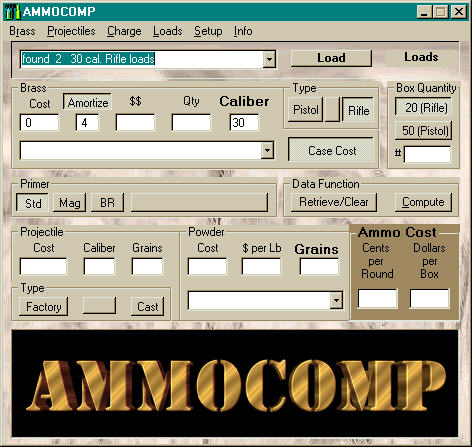
The main program window shown with Win95 "Desert" color scheme and AMMOCOMP standard background in 'warm tone'. The program comes with a 'cool tone' version of the same background and the background can be disabled as well as replaced by an image of the user's choosing. |
 |
|
top of page |
Menu Functions |
About AMMOCOMP |
Below that on the right is the Box Quantity selector. The box at the bottom of this frame can be used to input a box quantity amount and supplements the two programmable quantity buttons.
The Type selector next to this let's you select between 'Rifle' and 'Pistol' modes for component and load selection. The program databases recognize a third type, 'Both' which allows you to define components that are usable for both rifles and pistols.
AMMOCOMP can parse the database files when loading data so you have no unneeded items to weed through when 'assembling' loads or selecting them.
Underneath the Brass section is the programmable Primer function. It includes selectable buttons for three primer types preset [and currently not user-adjustable] for 'Standard', 'Magnum' and 'Bench Rest' primers, the cost/quantity of which, however, are programmable via the 'Setup' function. The large button on the right of this frame actives a combo-box that lets you alternately select specific primers from the primer database. Selecting one of the pre-programmed primer types automatically disables the primer database combo-box. A right-click on the big primer button will de-select all primers and they will not be included in the cost calculation.
The Powder function is straight-forward and allows you to select a powder type which is parsed from the database. AMMOCOMP will figure the powder cost based on the charge in grains you specify for the load.
Information included further on about the databases used by AMMOCOMP is very detailed but the operation of them is straight-forward and simple once a few simple conventions are understood.
In the Data Function section there are two buttons, 'Retrieve/Clear' and 'Compute'. Clicking on the 'Retrieve/Clear' button loads component data from the component databases into the various combo-boxes in the main window, making the components available for your selection when assembling loads. This retrieval function can be set to parse [or not to] the database for specific catagories of components by whether or not a round 'type' [pistol or rifle] is selected in the 'Type' section, and/or whether or not there is a caliber specified in the 'Caliber' box of the 'Brass' section. If none of these parameters is specified, then AMMOCOMP just loads all of the available data.
'Retrieving' data will reset the combo-boxes and wipe out the previous data that was there, if for instance, it had been loaded by a load in the 'Loads' section. Alternately you can click on a section's label to load a specific component group from the database. Once components are loaded in one of these ways from the database they can be selected from the combo-boxes and added to a load. A right-click on this 'Retrieve/Clear' button will literally 'wipe the slate clean'.
The Compute button does nothing more that calculate the ammo cost [in cents per round] and display it in the 'Ammo Cost' section. If a box quantity happens to be selected [or included in the box in that section] AMMOCOMP will also generate a cost amount in the 'Dollars per Box' window [no provision was made for preset of a standard 100-round large-sized ammo box as the cost of these will just be the same as the cents per round, but in dollars instead].
The Component database information is entered in the boxes at the bottom of the particular database window and functions selected from the menu at the top. For the Edit, Insert and Remove modes you must click on the appropriate row in the database to tell AMMOCOMP which component you wish it to act upon.
The Load function [compromising the large combo-box, button and text display at the top of the screen] may be another story and will require a bit of explaination. The convention here is that the function of the button is controlled by the "Load" menu item at the top of the screen.
Once the function is selected from the drop-down menu, the button will now be labeled describing it's current function. The label to the right of the button will display either "Loads" or "Components" depending on which item the button's function will be affecting. To understand this you have to know that the "Loads" database is a simple type of relational database and consists of two sections- a file containing "headers", or the name you give the load and it's basic parameters of 'type' [rifle or pistol] and caliber.
When you select a Load [by clicking on it] from the drop-down load combo-box, the function will automatically change to 'components'. Selecting the 'empty' load at the top of the combo-box list will change the function back to 'loads'. Alternately, a click on the label itself will toggle the mode, however if you try to select 'component' mode this way and don't have a load selected in the combo-box, AMMOCOMP won't know what load you want it to function with so it will refuse to go into that mode.
The components themselves that relate to those loads are stored in separate files that
AMMOCOMP associates with those headers. It is necessary to create this load by "Add"ing [or 'Insert'ing- see the instructions for that mode for more details] it to the "loads" file then select this load from the box and "Add" the components to it. By selecting or unselecting a load in this box you can control whether AMMOcomp's loads function is acting on the load's descriptor or the components of the load. Gee... i hope this isn't too confusing! You may need to investigate the more detailed step-by-step example instructions on this to get it figured out (especially about the 'Name' and 'Edit' functions].
Main Controls and Displays
Starting at the top is the Loads section. This is where all the handling of the user-creatable loads takes place. It's use may initially appear somewhat complicated and will be covered in detail later on in this text.
In the Brass section (which can be turned off or on, in the case you don't want the brass cost included) is a button for 'amortization'. With this, AMMOCOMP can take into account how many times the brass can be fired and alter the brass cost accordingly. The "Caliber" box here is the main caliber selector and AMMOCOMP uses this value, if present, when it parses the databases for the appropriate loads and components.
The information displayed in this Cast Bullet section includes the approximate quantity of bullets produced by a pound of alloy [the '#' box in the Alloy section and this value is generated by AMMOCOMP]. The Lube cost is figured by user-estimation of the number of pounds of lubed bullets the given amount of lube should produce [the '#' box in the Lube section]. Additionally, since home-made cast bullets involve a certain amout of 'manufacturing costs' there is a user-definable 'casting factor' applied to the alloy price of the bullet to simulate these costs in bullet production. Default value on this is 5, meaning the cost of the alloy in the bullet is mutliplied by 5 to arrive at the projectile cost. Like the other functions in this program, all these parameters are either user-adjustable or includeable in the projectile databases to make the functioning of all this as automatic as possible.
The bottom left of this main window contains an enormously functional Projectile selection system shown highlighted here in this detail in 'Cast Bullet' mode. You can choose this mode for home-cast bullets or from 'Factory' manufactured bullets that you include in the bullet database. In the event you're not into 'molding your own', this function can be adjusted through the default values to be not functional in the program, in which case the 'Factory' bullet section is always displayed.
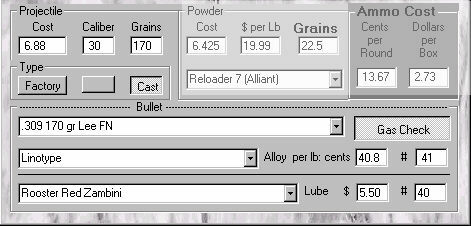
The Projectile section with the Cast Bullet function deployed, shown highlighted here with yet another windows color scheme.
Currently Operational Drop-down Menu FunctionsThe first three drop-down menu, "Brass", "Projectiles" and "Charge", are for the AMMOCOMP "Components" databases and open windows to those databases allowing you to build databases of the components you use to reload ammo.
The "Loads" menu item shows and allows you to select the 'modes' that the "Loads" button can assume for working on your database of loads. All these functions have function-key shortcuts to allow you one-button access to these functions.
The "Setup" menu has has controls for setting and loading the program defaults [some of which require a program re-start to take effect] and the control for the background image. Incidentally, this image is located in the same folder as the rest of the
AMMOCOMP files and is called "BACKG.jpg". You can change the background to any image you want by simply putting a jpeg file in this folder and naming it that.
The last drop-down menu, the "Info" menu has selections for the 'About' program box and the three main AMMOCOMP controls on the main window [the "Loads" button, "Retrieve" button and "Compute" button] which are controllable by 'shortcut' function keys, as well. The 'Load Notes' are activated by the item of the same name on this menu or by the 'Ctrl' + 'F12' short-cut key combination. Lastly, the 'Tool Tips' item will select whether the pop-up captions for the various controls are to be displayed or not. |
Components
|
|
top of page |
Features and Controls |
About AMMOCOMP |
Components Databases:Loads functions
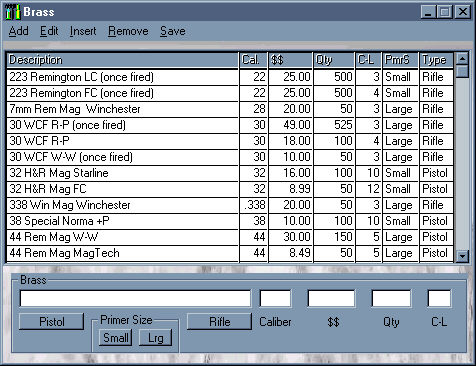
The Brass component database window shown with the Win95 'Rainy Day' color scheme and 'cool tone' AMMOCOMP background with some sample brass data loaded |
|
|
top of page |
Features and Controls |
About AMMOCOMP |
Setup function |
|
To ADD a component database item, enter the data into the boxes at the bottom of the database window and click the 'Add' menu item [or press 'Alt' & 'a' keys]. This data will now be added as a row in the database. This and any other changes to the databases must be 'Save'd before they become permanent and can be used by AMMOCOMP.
As apparent in the example of the Powder database shown on the right, the databases have 'Type' selectors of 'Pistol' and 'Rifle' for catagorizing components by these types. Activating both of these is possible which will tell AMMOCOMP the particular component is appropriate for both types of ammo.
Each database is 'customized' for the type of component it holds, so the data required to enter will vary from one to the other. This Powder database, for instance, includes a special 'Bulk' function that can be enabled to automatically calculate the cost per pound of 'bulk' quantities [i.e. kegs or cases] of powders and this particular default quantity value is programmable through the 'Setup' function, as well [of course, it can also be changed 'on-the-fly' while you are using it by just typing a value into the box, making it not necessary to change the default value every time you need a different value].
Some specialized 'input' functions of the other databases are a similar 'per pound' calculator for the 'Alloy' database for the 'Cast Bullet' section, specified 'Case Life' for the 'amortization' of the 'Brass' function and indicating 'large' or 'small' types for the 'Primer' database section.
|
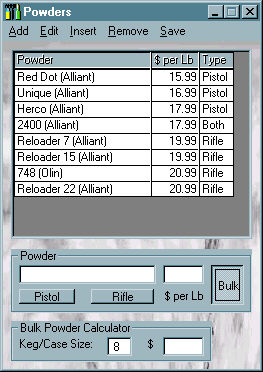
The Powder database shown with the Win95 'Slate' scheme, 'cool tone' background and the 'Bulk Powder Calculator' deployed
|
REMOVE a component database item by again selecting the item by clicking on it's row in the database and click remove. The item will be removed and as with all these database data functions, changes have to be 'Save'd to make them permanent.
Use the SAVE function to make permanent any changes made to a component database simply by clicking on the 'Save' function [or press 'Alt' and 's'] and this function is activated and your database saved. Any changes caused by the data-altering functions for the databases will not become available to AMMOCOMP or permanent until and unless these changes are saved with this function.
The Loads Database:
|
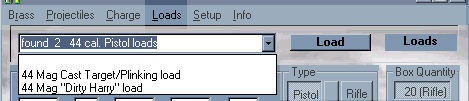
The Loads Database section consists of the following items shown in the detail here. The drop-down menu labeled "Loads", the large drop-down combo-box below on the left, the muti-function command button just to the right of that and the mode indicator label on the far right, as highlighted in the picture above.
All the functions listed here for the multi-function button are accessible through the 'Loads' drop-down menu and shortcut keys F1 to F8. The Loads multi-function button itself can be directly activated by pressing F9.
'Load Notes' are in the 'Info' drop-down menu and can be directly accessed by Ctrl+F12
|
|
top of page |
Features and Controls |
About AMMOCOMP |
Setup function |
Using the Add function when in 'Loads' mode will add a load to the Loads database. The name in the Loads combo-box, the caliber in the 'Caliber' box of the 'Brass' section and the 'Type' currently selected will be assigned to that load at the time the add function is activated. If these are not what is desired, these parameters can be changed through the 'Name' and 'Edit' functions, covered further on in this text. The Loads database will have to be 'Save'd before any additions will become permanent.
This 'Add' function is also what's used to start a new AMMOCOMP Loads database and will prompt you that you are in fact starting a new Loads database. If you intend to add a load to your existing Loads database, make sure it is loaded first or you will just be overwriting your existing database if you save a new one over it!
When in 'Components' mode, the 'Add' function will add the components displayed on the main window to the load selected in the Loads combo-box. The components must be saved to make this addition permanent [and the components must in fact be added before being saved or they won't really be saved at all].
This function has no affect in the component mode. Again, changes have to be saved to become permanent.
If you continue at this point to activate the 'Insert' function, the load indicated in this window will be copied and inserted into the Loads database at a location just before it's position as indicated in the indicator window.
The alternate mode for the 'Insert' function will insert the load to a specified location in the loads database. You specify this position before activating the load function by clicking on the load in the combo-box that is in a position just below where you want the inserted load placed. The initial steps of selecting the load to insert then selecting the insert function [placing the origin number in the indicator box] must be done first. Only after you have a load number indicated in the indicator label but before you activate the multi-function button while it says 'Insert' do you select the destination location in the combo-box.
In 'Insert' mode, the Loads database is automatically updated, saved and re-displayed when activated.
The Name function is only operational on loads, as the Edit function does and is used to name [or rename] a load. By selecting a load then selecting the load function from the drop-down menu [or using the F6 shortcut key] the indicator label should now display the number of the load in the list that will be renamed. All that is necessary is to then put the new name into the 'Loads' combo-box and activate the Name function by now clicking the multi-function button while it's labeled "Name". The Loads database will have to be 'Save'd to make this name change permanent.
Remove function does just exactly that- removes a load from the Loads database. Since this function directly affects the related component databases like the 'Insert' function does, it automatically saves this change so you must be sure you've got the proper load selected and that you really want to remove it [as unlike the 'Insert' function you will be actually erasing info from the databases instead of just moving it around]. Also like the insert function you must select the appropriate load from the database before this function is selected and it will indicate the load list number in the indicator label when you do. A click of the multi-function button while it says 'Remove' will now remove that load from the database.
Save is the function you use to save changes to the Loads or Components databases of the Loads function. As with the other functions, which database it affects will be dependant on what's indicated in the multi-function indicator label. When making changes to the components of a load, keep in mind that these changes have to be 'Add'ed before they will be saved!
|
top of page |
Features and Controls |
About AMMOCOMP |
Component Databases |
|
AMMOCOMP now has Load Notes!
The pop-up 'Load Note' window [accessible with the Ctrl+F12 shortcut-key combination or through the 'Info' menu] adds a handy way to keep notes and test data on your loads!
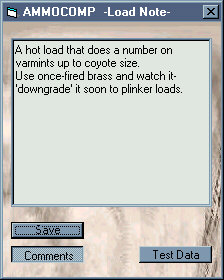
Shown on the right is the 'Text' Load Note window that will display up to 12 32-character lines of text.
Comments about a load can be just typed in the box and with a click of the 'Save' button will be stored along with your load for future reference. |
 |
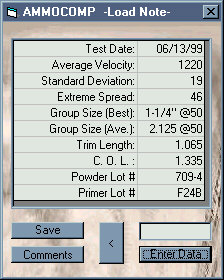 |
The Load Note 'Data' window has room for 10 data items. To edit the data items simply select a row in the data grid by clicking on it, type the item into the data entry box [just above the 'Enter Data' button] and then click on the enter data button.
The caption labels in the left column can be changed by activating the 'left arrow button' which will add the text from the data entry window to the left column instead of in the right column. These captions are saved into the database along with the data so the data captions are actually 'tailorable' for each and every AMMOCOMP load! |
|
top of page |
Features and Controls |
About AMMOCOMP |
Component Databases |
Setup AMMOCOMPAs mentioned before, just about all the parameters AMMOCOMP uses to calculate cost and it's program window setup are user-configureable. Factors can be supplied into the grid by entering a value in the little box below the grid, selecting a row to place it by clicking on that row in the grid, then clicking on the 'Set Default' item on the menu bar or the button to the left of the box. As with all functions, any changes must be 'Save'd to make them permanent.
The configuration as to whether AMMOCOMP starts in 'Pistol' or 'Rifle' mode, a Primer [and which one] selected and Projectile type etc. Tool-tips, background image and even the Cast Bullet function being available on start-up are also included as user-adjustable. |
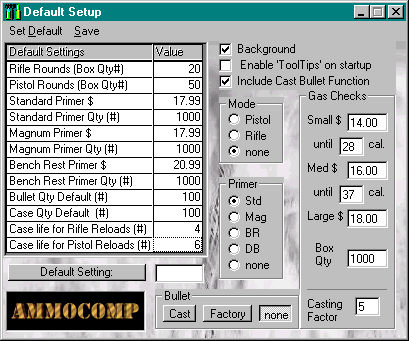
In addition to having the programmable Primers, Gas Checks for the Cast Bullet mode are programmable as well. They can be programmed for three sizes: small, medium and large, each with their own cost and not only that, but the cut-off point [by caliber] from one to the next is user-programmable making the Gas Check selection entirely automatic by AMMOCOMP. I'm telling you... is this program SLICK, or what!
|
|
top of page |
Features and Controls |
About AMMOCOMP |
Component Databases |
In the event AMMOCOMP ever gets confused enough to overlook any component(s) because of an 'apparent' discrepancy in designation you may have to make some adjustments to your caliber specification of the problem component(s). With any luck that shouldn't happen as the 'Smart Caliber' function is designed to help avoid caliber confusion and to even handle metric calibers with or without 'mm' specified.
Even though AMMOCOMP uses it's 'Smart Caliber' function to 'dumb-down' caliber designations to it's own level, there is a way you can increase the programs 'caliber IQ' a bit with an advanced caliber function refered to as 'ODS', or the Outside-Diameter Specific function.
To enable ODS, type a decimal caliber number [such as .223, .358 or .429, for example] into the Bullet Caliber window. Now click on the bullet caliber label and it will change to a bold 'OD'. This locks this window from further user input [until ODS is disabled by another click on the label] and causes AMMOCOMP to use that specific bullet OD measurement as it parses the bullet database for components. This ODS function may be useful to a user who say, for example, uses a large variety of purchased bullets in both lead and jacketed types for a particular caliber [in this case, most likely a handgun] and wants to refine the component retrieval function to differentiate between the small variation in O.D. between the two varieties of bullets when it parses the database. If this function is to be used then specifying these decimal caliber designations in the bullet databases must be used or AMMOCOMP will ignore the component while in this ODS mode. I imagine few AMMOCOMP users will need this level of complexity, though.
It may turn out that the 'Smart Caliber' function isn't quite smart enough but I'll just have to wait and see.
|
top of page |
Features and Controls |
Setup AMMOCOMP |
Component Databases |
Install the program by running the 'setup.exe' program on the supplied media. Un-install the program with the Windows 'Add/Remove Program' function in the operating system's 'Control Panel'. It will be necessary to manually remove any database files created during the use of AMMOCOMP in the directory folder the program was installed in .
AMMOCOMP was created because I wanted a quick and easy way to calculate how much my handloads cost to fire. While most would not consider this a vital statistic, I think it's nice to know and would be for the handloader who loads for their non-loading friends, etc. Even if one doesn't care about the cost factor, AMMOCOMP is still a great way to store your loads on computer and I can't imagine any handloader with a PC who wouldn't want this program, so... don't reload without it!
Major and minor changes [apart from normal 'debugging'] to
AMMOCOMP
versions:
2.0.xx: Loads database added creating a multi-function program!
2.1.xx: Load Notes! A further enhancement to the programs functionality
AMMOCOMP program written by andykidd.
The Fine Print:
andykidd@yahoo.com
Technical support for the licensed version is available at the above email address.
AMMOCOMP program and all related documentation ©1999,2001 andykidd
one additional note: far-be-it from me to tell you how to configure your system; however, this
HTML document probably works best at minimum resolution of 800X600 and a medium size font.
|
to top of page |